Sanjay Choubey

  • Home
  • Services
    • SEO
    • PPC
    • SMO
    • SEO Niche
      • Education SEO
      • Dental SEO
  • SEO Packages
  • About
  • Blog
  • Results
  • Reviews
  • Contact

How to add new blogger official contact form in your blogspot blog

June 5, 2013 By Sanjay Choubey 1 Comment

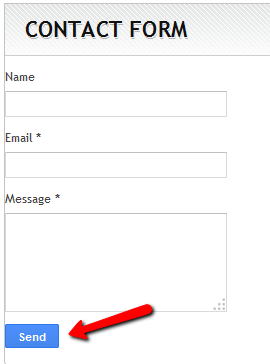
Hello m sharing you a new blogger trick latest Contact us widget developed by blogger. It is simple and no coding is needed for this.the new Contact us form will look like same as shown in fig. the installation process for this contact form will be same as we do for simple blogger official widgets.

All you need to do is to follow these simple steps:
1. Go to Blogger dashboard
2. click on layout
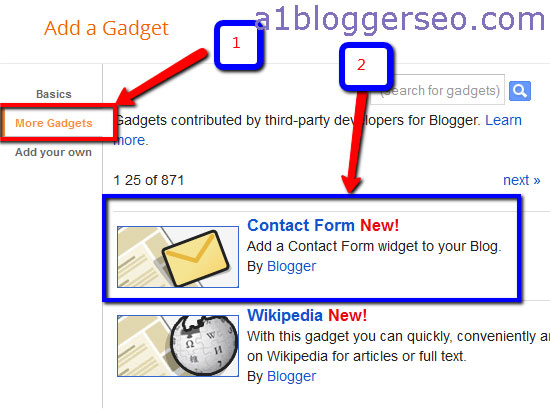
3.Click on add a gadget where you want to put contact form on your blog.
4. Click on more gadgets you will see a widget by name Contact Form.
5. finally select the widget and save.
All done..!!!!Enjoy!!!!

Feature of this Widget :::::
This widget is really nice and simple. It can be used for small purposes. You can send text messages to blog/website author. All you need is to feel simply your name , email and subject portion.. After filling you can send the message. The send message is mailed to the author of the website. Drawbacks are it would be great if blogger have added an attach button to send small files to the blog author. You can’t send html codes to the author. but overall it is great for its simplicity. must use it.
Filed Under: Blogger tips, Blogger widgets

How to add/show widget for related posts in blogger at the bottom

May 12, 2013 By Sanjay Choubey 12 Comments

Hi every one, today m going to share an another useful seo tricks for the blogger. its to add stylish widget for related posts in blogger.

there are many methods for this. one has to add several codes in blogger for this. m sharing one of the simplest method..

Setup Related post Widget in Blogger/Blogspot.

I am suggesting you a very easy-to-setup online service which will add related posts under your Blogger Blog posts in two minutes only. The service is provided by LinkWithin which adds beautifully laid-out related posts with thumbnails under each post on your Blogger blog. Many bloggers don’t like this service to use on their blogs due to the addition of LinkWithin attribution link which the service puts with the post suggestions to promote itself. I will provide you a piece of CSS code which will remove LinkWithin Attribution Link..
1. First of all visit http://linkwithin.com and provide your blog URL and other details to fill out the form, select Blogger as your platform and click on Get Widget to proceed to the second and final step
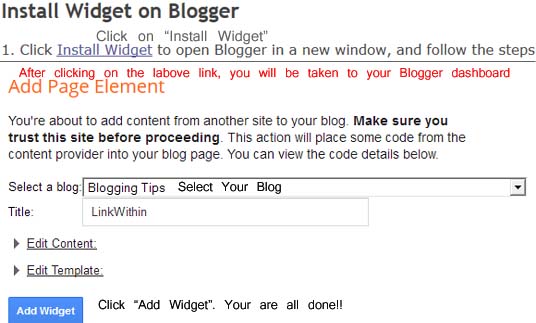
2. In this step, click on Install Widget link. You must logged into your Blogger blog dashboard during this step. If you aren’t, provide your login credentials after clicking the Install Widget link. Once you reach your Blogger blog dashboard, select your desired blog, to which you want to add related posts and then click on “Add Widget”. In the next page, Save Arrangement of your blog’s layout. You are all done!!! (see the image)

now visit any post on your blog. You will see related posts suggestion with thumbnails at the bottom of your posts. Now next step is to remove LinkWithin Attribution Link. If you feel comfortable with the link, then you might decide to leave this link as it is. It will credit the developers. But if you don’t want to keep this attribution, below is the CSS code and procedure which will remove LinkWithin Attribution Link.

How to Remove LinkWithin Attribution Link from Related Posts on Your Blogger Blog

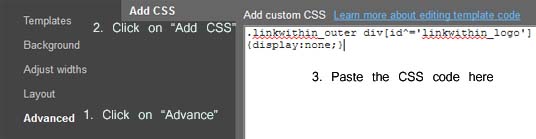
1. To remove the LinkWithin attribution link, login to your Blogger blog dashboard, select your blog and then select Template from the sidebar list. After that, click on Customize
 

2. In the next window, click on Advance, then on Add CSS and paste the below provided CSS code in the box. 


CSS CODE FOR REMOVING THE ATTRIBUTE WILL BE :
.linkwithin_outer div[id^=’linkwithin_logo’] 
{display:none;}


After pasting the code, click on  Apply to Blog button on right top corner. You have removed the attribute now.

How to hide related posts from Home page and to show only after clicking on posts title :
 
If you don,t wanna show related post by linkwithin on Home page, and want to show related posts only when some one clicks on a post title then do following steps :
1. Go to blogger dashboard.
2. Go on template and click on edit html option
3. find the following code( for simplicity find linkwithin you will see this code)
<b:widget id='HTML1' locked='false' title='LinkWithin' type='HTML'>
<b:includable id='main'>
<data:content/>
</b:includable>
 
4. Now replace the above code with code given below :
 
<b:widget id=’HTML1′ locked=’false’ title=’LinkWithin’ type=’HTML’>
<b:includable id=’main’>
<b:if cond=’data:blog.pageType == &quot;item&quot;’>
<data:content/>
</b:if>
</b:includable>
5. save the template.

Have done..Enjoy

Recommended – Must add Alexa Widget in Blogger


Filed Under: Blogger tips, Blogger widgets, SEO Tagged With: Show related posts in Blogger

How to add back to top icon in blogger

May 12, 2013 By Sanjay Choubey Leave a Comment

back-to-top-widget-blogger

Add Back to Top Widget in Blogger :

Hi friends, M going to share a simple and  useful tricks for you. as we see in some blogs an image is inserted to the footer area in the right corner. it is simple and effective. visitors can go to the top by clicking on the image  as shown here.
Just follow the simple steps :
1. sign in to your blog and go to the layout
2. Go to layout and add a html/javascript  gadget
3. paste the following code :

   <div style=”position: fixed; bottom: 5px; right: 5px;“><a href=”#” title=”Back to Top”><img src=”https://encrypted-tbn1.gstatic.com/images?q=tbn:ANd9GcQc9MMBNBxV2we-eyiYRTrWXb21FSb2rQuTwc3huUq3dXgqV3ls“/></a></div>

=> You can change the image by changing the URL marked in red to your uploaded image.
=>You can also re-position the “back to top” icon button by changing the code bottom: 5px; right:5px;. To position the button further away from the right or bottom sides, simply increase the pixels value, like, bottom: 10px; right: 10px;

Also see :  Add Alexa Widget in Blogger

This post is written by Sanjay kr choubey. Circle him on Google+ for future updates.

Filed Under: Blogger tips, Blogger widgets, SEO Tagged With: back to top icon in Blogger

How to remove powered by blogger attribute in a blog

May 11, 2013 By Sanjay Choubey 2 Comments

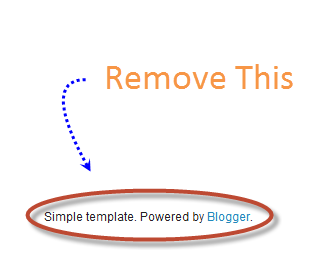
we see a blogger attribute namely powered by blogger in footer area of a blogspot blog. it can be removed. all u need is to do a simple step. even there are many methods to remove this attribute, I am going to share simplest  blogging tips for this.

Steps to remove Powered by Blogger :

1. Go to your blogger Dash board
2. Select the template section and click on edit html
3. Now find the given code by searching ctrl+f
<b:widget id=’Attribution1′ locked=’true’ title=” type=’Attribution’>
4. Replace the value ‘true’ with ‘false’
5.save the template
6. Now go in layout section you will see the attribution section for powered by blogger.
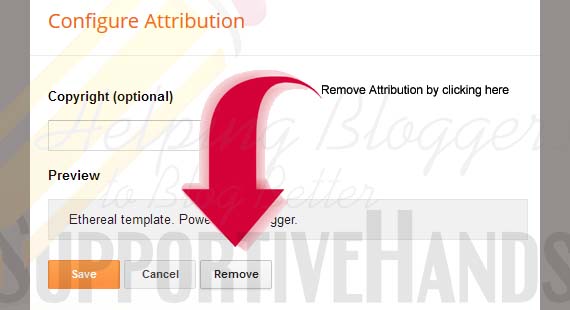
7. Edit attribution gadget and remove it as shown in fig.

8.You are done..enjoy but I will personally request you to add this removed attribute link to any suitable position of your blog. We must give credit to blogger for such a great service. All the best.

Filed Under: Blogger tips, Blogger widgets

How to optimize Archive links in blogger for SEO point of view

March 9, 2013 By Sanjay Choubey 2 Comments

Set Archive Links for better results

Welcome to my new post. As I have already posted for how to make all external links no follow, M going to share a new seo tips for blogger. As we know that Archive collects posts by date, Month and year wise. It looks good in blog and also it is very useful for the readers. as they can easily look your entire posts. But for the SEO point of view, we need to change the setting for archive so that search engine’s crawler can’t crawl it as there is always a “chance of duplicacy”. so m giving you the simplest trick so that Any search engine will not crawl your blog archive.

 Follow these steps:

1.  Go to Blogger
2.  Then go to Template >> HTML >> Proceed >> Click The Expand Widget Template
3.   Now Find Below Line Of Code in Your Template

<a class=’post-count-link’ expr:href=’data:i.url’>

4. Now replace the above existing code with this one:

 <a rel=”archives” class=’post-count-link’ expr:href=’data:i.url’> 

 Now finally Save the template and you’re done. Now search engines will automatically understand it and won’t crawl it.

Additionally you can do this step also:
1. Go to blogger dash board
2. Click on setting
3. Setting >> Search Preferences >> Scroll down the page and see
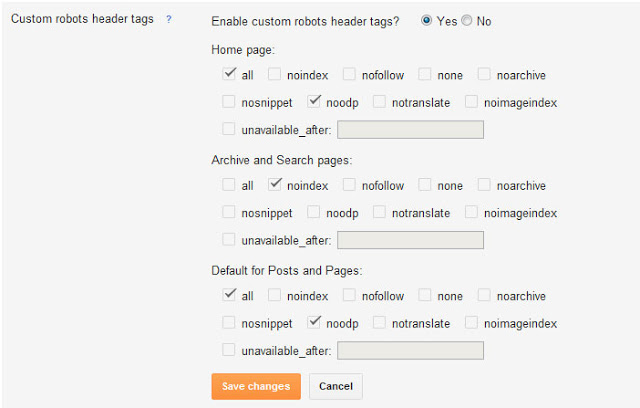
   Custom Robots Header Tags
   Edit >> Yes >> and now make this setting which is showing in       
   below picture
Archive setting for Blogger
Archive setting for blogger

4. Now finally save the setting and enjoy…

Complete On page Seo for Blogger


Filed Under: Blogger tips, SEO

  • « Previous Page
  • 1
  • …
  • 33
  • 34
  • 35
  • 36
  • Next Page »

Locations I Serve

Delhi | Noida | Gurugram | Ghaziabad | Faridabad | Chennai | Patna | Mumbai | Bangalore | Hyderabad | Kolkata | Pune | Jaipur | Lucknow | Chandigarh | Bhopal | Indore | Nagpur | Ahmedabad | Vadodara | Rajkot | Coimbatore | Kochi | Trivandrum | Ranchi | Bhubaneswar | Guwahati | Vishakhapatnam | Vijayawada | Mysore | Mangalore | Ludhiana | Amritsar | Jalandhar | Dehradun | Meerut | Kanpur | Varanasi | Prayagraj | Agra | Gwalior | Jabalpur | Raipur | Bilaspur | Durg-Bhilai | Jamshedpur | Dhanbad | Siliguri | Shimla | Srinagar | Jammu | Goa | Rishikesh | Greater Noida | Surat

Copyright @ Sanjay Choubey
WhatsApp Call Now