Sanjay Choubey

  • Home
  • Services
    • SEO
    • PPC
    • SMO
    • SEO Niche
      • Education SEO
      • Dental SEO
  • SEO Packages
  • About
  • Blog
  • Results
  • Reviews
  • Contact

Add a beautiful all in one multi social network profile widget for Blogger/WordPress.

June 15, 2013 By Sanjay Choubey Leave a Comment

Hello friends, I hope you are doing well, today m going to share an another Blogger widget which can be used for wordpress too.This widget contains all in one social networks buttons like, Facebook page, twitter follower, Pinterest, Google+ and email subscription widget.. This cool widget is look like as shown in fig:
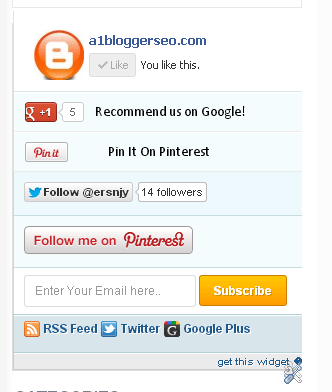
Awesome social profile widget for blogger/wordpress

Benefits of this widget :
This widget looks stylish and contains all social profiles needed for blogger and also it containd subscription box. i will recommend you to Put this widget on your blog and make ur blog more beautiful.

How to Install All in One Social Widget :

1. Go to Blogger dashboard.
2. Click on layout
3. click on add a gadget and select add a html/javascript gadget
4. Leave title blank and Paste the following code in body section:

<style>/* Social Widget */    #HB-mashable-bar{border: 0;margin-bottom: 10px;margin: 0 auto;width:300px;border: 1px solid #DDD;}.fb-likebox{background: #fff;padding: 10px 13px 0 10px;border-right: 1px solid #D8E6EB;border-left: 1px solid #D8E6EB;border-bottom: 1px solid #D8E6EB;margin:0px;height:70px;}.googleplus{background: #F5FCFE;border-top: 1px solid #FFF;border-bottom: 1px solid #ebebeb;border-right: 1px solid #D8E6EB;border-left: 1px solid #D8E6EB;border-image: initial;font-size: .90em;font-family:”Arial”, “Helvetica”, sans-serif;color: #000;padding: 9px 11px;line-height: 1px;}.googleplus span{color: #000;font-size: 14px;position: absolute;display:inline-block;margin: 9px 70px;font-family: calibri;width: 280px;}.pinterest1{background: #F5FCFE;border-top: 1px solid #FFF;border-bottom: 1px solid #ebebeb;border-right: 1px solid #D8E6EB;border-left: 1px solid #D8E6EB;border-image: initial;font-size: .90em;font-family:”Arial”, “Helvetica”, sans-serif;color: #000;padding: 9px 11px;line-height: 1px;}.pinterest1 span{color: #000;font-size: 14px;position: absolute;display:inline-block;margin: 9px 40px;font-family: calibri;width: 280px;}.g-plusone{float: left;}.gplus{background: #fff;padding: 0px;border: 0px solid #C7DBE2;margin-bottom:-13px;}.twitter{background: #EEF9FD;padding: 10px;border: 1px solid #C7DBE2;border-top: 0;}.pterest{background: #F5FCFE;padding: 10px;border: 1px solid #C7DBE2;border-top: 0;}#mashable{background: #EBEBEB;border: 1px solid #CCC;border-top: 1px solid white;padding: 2px 8px 2px 3px;text-align: right;border-image: initial;}#mashable .author-credit{}#mashable .author-credit a{font-size: 10px;font-weight: bold;text-shadow: 1px 1px white;color: #1E598E;text-decoration:none;}#email-news-subscribe .email-box{padding: 5px 10px;font-family:”Arial”, “Helvetica”, sans-serif;border-top: 0;border-right: 1px solid #C7DBE2;border-left: 1px solid #C7DBE2;border-image: initial;height:36px;}#email-news-subscribe .email-box input.email{background:#FFFFFF;border: 1px solid #dedede;color: #999;padding: 7px 10px 8px 10px;-moz-border-radius: 3px;-webkit-border-radius: 3px;-o-border-radius: 3px;-ms-border-radius: 3px;-khtml-border-radius: 3px;border-radius: 3px;border-image: initial;font-family:”Arial”, “Helvetica”, sans-serif;}#email-news-subscribe .email-box input.email:focus{color:#333   }#email-news-subscribe .email-box input.subscribe{background: -moz-linear-gradient(center top, #FFCA00 0, #FF9B00 100%);background: -webkit-gradient(linear, left top, left bottom, color-stop(0, #FFCA00), color-stop(1, #FF9B00));background: -moz-linear-gradient(center top, #FFCA00 0, #FF9B00 100%);-pie-background: linear-gradient(270deg, #ffca00, #ff9b00);font-family:”Arial”, “Helvetica”, sans-serif;border-radius:3px;-moz-border-radius:3px;-webkit-border-radius:3px;border:1px solid #cc7c00;color:white;text-shadow:#d08d00 1px 1px 0;padding:7px 14px;margin-left:3px;font-weight:bold;font-size:12px;cursor:pointer;border-image: initial;}#email-news-subscribe .email-box input.subscribe:hover{background: #ff9b00;background-image:-moz-linear-gradient(top, #ffda4d, #ff9b00);background-image:-webkit-gradient(linear, left top, left bottom, from(#ffda4d), to(#ff9b00));filter:progid:DXImageTransform.Microsoft.Gradient(startColorStr=#ffffff, endColorStr=#ebebeb);outline:0;-moz-box-shadow:0 0 3px #999;-webkit-box-shadow:0 0 3px #999;box-shadow:0 0 3px #999 background:-webkit-gradient(linear, left top, left bottom, color-stop(0, #ffda4d), color-stop(1, #ff9b00));background:-moz-linear-gradient(center top, #ffda4d 0, #ff9b00 100%);-pie-background:linear-gradient(270deg, #ffda4d, #ff9b00);border-radius:3px;-moz-border-radius:3px;-webkit-border-radius:3px;border:1px solid #cc7c00;color:#FFFFFF;text-shadow:#d08d00 1px 1px 0    }#other-social-bar{background-color: #D8E6EB;box-shadow: 0 1px 1px #FFFFFF inset;padding: 0px;font-family:”Arial”, “Helvetica”, sans-serif;font-weight:bold;overflow: hidden;border: 1px solid #B6D0DA;height:37px;}#other-social-bar ul{list-style: none outside none;padding-left: 4px;}#other-social-bar .other-follow{float: left;color:#1E598E;overflow: hidden;height:20px;padding:5px;width: 270px;}#other-social-bar .other-follow ul{list-style: none outside none;padding-left: 4px;}#other-social-bar .other-follow ul li{font-size: 12px;font-weight: bold;display:inline;border:0;text-shadow: 1px 1px white;}#other-social-bar .other-follow ul li a{font-size: 12px;color:#1E598E;font-weight: bold;display:inline;text-shadow: 1px 1px white;}#other-social-bar .other-follow li{font-size: 12px;font-weight: bold;display:inline;border:0;text-shadow: 1px 1px white;}#other-social-bar .other-follow li a{font-size: 12px;color:#1E598E;font-weight: bold;display:inline;text-shadow: 1px 1px white;}#other-social-bar .other-follow li.my-rss{background: url(‘http://3.bp.blogspot.com/-sR72SM_Wets/TwHZG9y4hXI/AAAAAAAAFv8/0bP2R3Qkl8c/s400/rss-16×16.png’) no-repeat transparent;line-height: 1;padding: 0px 3px 1px 20px;width: 60px;margin-bottom:0px;margin-left:5px;}#other-social-bar .other-follow li.my-rss a, #other-social-bar .other-follow li.my-twitter a, #other-social-bar .other-follow li.my-gplus a{text-decoration:none;}#other-social-bar .other-follow li.my-rss a:hover, #other-social-bar .other-follow li.my-twitter a:hover, #other-social-bar .other-follow li.my-gplus a:hover{text-decoration:underline;}#other-social-bar .other-follow li.my-twitter{background: url(‘http://2.bp.blogspot.com/-KsALKRN7Zzo/T0vKkSG3AfI/AAAAAAAAF_k/l-VHD5xxzps/s400/twitter%2527.png’) no-repeat transparent;line-height: 1;padding: 0px 3px 1px 20px;width: 60px;margin-bottom:0px;}#other-social-bar .other-follow li.my-gplus{background: url(https://4.bp.blogspot.com/-cC729VpBxrk/TwHZE71ZgoI/AAAAAAAAFvk/_UMyIgA8vj8/s400/gplus-16×16.png) no-repeat transparent;line-height: 1;width: 60px;padding: 0px 3px 1px 20px;margin-bottom:0px;}</style><!–[if IE]><style>#email-news-subscribe .email-box input.subscribe{background: #FFCA00;}</style><![endif]–><!–begin of social widget–><div style=”margin-bottom:10px;”><div id=”HB-mashable-bar”><!–Begin Widget –><div class=”gplus”><link href=”https://plus.google.com/u/0/ 102186620539628606324/” rel=”publisher” /><script type=”text/javascript”>window.___gcfg={lang:’en’};undefinedfunctionundefined){var po=document.createElementundefined”script”);po.type=”text/javascript”;po.async=true;po.src=”https://apis.google.com/js/plusone.js”;var s=document.getElementsByTagNameundefined”script”)[0];s.parentNode.insertBeforeundefinedpo,s);})undefined);</script><script type=”text/javascript”>var _gaq=_gaq||[];_gaq.pushundefined[‘_setAccount’,’UA-29131740-1′]);_gaq.pushundefined[‘_trackPageview’]);undefinedfunctionundefined){var ga=document.createElementundefined’script’);ga.type=’text/javascript’;ga.async=true;ga.src=undefined’https:’==document.location.protocol?’https://ssl’:’http://www’)+’.google-analytics.com/ga.js’;var s=document.getElementsByTagNameundefined’script’)[0];s.parentNode.insertBeforeundefinedga,s);})undefined);</script><!–Place this tag where you want the badge to render –><g:plus href=”https://plus.google.com/u/0/ 102186620539628606324/” width=”300″ height=”131″ margin=”0px” theme=”light”></g:plus></div><div class=”fb-likebox”><!–Facebook –><div id=”fb-root”></div><script>(function(d,s,id){var js,fjs=d.getElementsByTagName(s)[0];if(d.getElementById(id))return;js=d.createElement(s);js.id=id;js.src=”//connect.facebook.net/en_US/all.js#xfbml=1″;fjs.parentNode.insertBefore(js,fjs);}(document,’script’,’facebook-jssdk’));</script><div class=”fb-like-box” data-href=”http://www.facebook.com/a1bloggerseo” data-width=”292″ data-show-faces=”false” data-stream=”false” data-header=”false”></div></div><div class=”googleplus”><!–Google –><span>Recommend us on Google!</span><div class=”g-plusone” data-size=”medium”></div><script type=”text/javascript” src=”https://apis.google.com/js/plusone.js”></script></div><div class=”pinterest1″><a href=’javascript:void(run_pinmarklet1())’><img src=”http://2.bp.blogspot.com/-lRae8bdMpuA/TzuLrnycXaI/AAAAAAAACQE/YVYUjfs7dm8/s1600/pinmask2.png” style=’margin:0;padding:0;border:none;’/></a><script type=’text/javascript’>function run_pinmarklet1(){var e=document.createElement(‘script’);e.setAttribute(‘type’,’text/javascript’);e.setAttribute(‘charset’,’UTF-8′);e.setAttribute(‘src’,’http://assets.pinterest.com/js/pinmarklet.js?r=’+Math.random()*99999999);document.body.appendChild(e);}</script><span>Pin It On Pinterest</span></div><div class=”twitter”><!–Twitter –><iframe title=”” style=”width: 300px;height: 20px;” class=”twitter-follow-button” src=”http://platform.twitter.com/widgets/follow_button.html#_=1319978796351&align=&button=blue&id=twitter_tweet_button_0&lang=en&link_color=&screen_name=ersnjy&show_count=&show_screen_name=&text_color=” frameborder=”0″ scrolling=”no”></iframe></div><div class=”pterest”><a href=”http://pinterest.com/ersnjy/”><img src=”http://passets-cdn.pinterest.com/images/about/buttons/follow-me-on-pinterest-button.png” width=”169″ height=”28″ alt=”Follow Me on Pinterest” /></a></div><div id=”email-news-subscribe”><!–Email Subscribe –><div class=”email-box”><form action=”http://feedburner.google.com/fb/a/mailverify” method=”post” target=”popupwindow” onsubmit=”window.openundefined’http://feedburner.google.com/fb/a/mailverify?uri=a1bloggerseo‘, ‘popupwindow’, ‘scrollbars=yes,width=550,height=520’);return true”><input class=”email” type=”text” style=”width: 150px;font-size: 12px;” id=”email” name=”email” value=”Enter Your Email here..” onfocus=”if(this.value==this.defaultValue)this.value=”;” onblur=”if(this.value==”)this.value=this.defaultValue;” /><input type=”hidden” value=”a1bloggerseo” name=”uri” /><input type=”hidden” name=”loc” value=”en_US” /><input class=”subscribe” name=”commit” type=”submit” value=”Subscribe” /></form></div></div><div id=”other-social-bar”><!–Other Social Bar –><ul class=”other-follow”><li class=”my-rss”><a rel=”nofollow” title=”RSS” href=”http://feeds.feedburner.com/a1bloggerseo” target=”_blank”>RSS Feed</a></li><li class=”my-twitter”><a rel=”nofollow” title=”twitter” rel=”author” href=http://twitter.com/ersnjytarget=”_blank”>Twitter</a></li><li class=”my-gplus”><a rel=”nofollow” title=”Google Plus” rel=”author” href=https://plus.google.com/u/0/102186620539628606324 target=”_blank”>Google Plus</a></li></ul><!–Don’t remove credits otherwise your widget will not work –></div><div id=”mashable” style=”background: #EBEBEB;border: 1px solid #CCC;border-top: 1px solid white;padding: 1px 8px 1px 3px;text-align: right;border-image: initial;font-size:10px;font-family: ” arial “,”helvetica “,sans-serif;”><span class=”author-credit” style=”font-family: Arial, Helvetica, sans-serif;”><a href=”https://sanjaychoubey.com/2013/06/add-beautiful-all-in-one-multi-social.html” target=”_blank”> get this widget �</a></span></div></div><!–Don’t remove credits otherwise your widget will not work –><!–End Widget –><!–end of social widget–></div>   


Now replace all blue codes with your own social profile ids, Like 102186620539628606324 with your own google plus number id.
http://www.facebook.com/a1bloggerseo with your own facebook page url
ersnjy with your own twitter user name.
http://feeds.feedburner.com/a1bloggerseo with your own rss feed url.
Finally click on save…
Enjoy u have added a stylish social widget in ur Blogger blog.
You can add it in your WordPress blog too. see here
If you have any issue, feel free to ask me in the comment section.

Filed Under: Blogger gadgets, Blogger tips, social sites, wordpress tips Tagged With: all in one social widget Blogger

How to create drop down list in Blogger with css codes only

June 14, 2013 By Sanjay Choubey Leave a Comment

Hello every one, Hope you doing well.
Today, m going to share a trick for making a beautiful drop down menu with css codes only. Since it will be in css so it will not effect your blog’s loading time.
Why to use this Menu :
There is fully css coding (No javascript)for this menu and not a single image is used in it. Menu is available in 10 different colors. and it is compatible with all browsers.

How to install this blogger drop down menu :

1. Go to your blogger dashboard.
2. Then click on layout.
3. Add a html/javascript gadget
4. paste the following code in it.

 <link href=”https://www.opendrive.com/files/MV80OTcyMDUxX00ySmE0/cssmenu-lordhtml.css” rel=”stylesheet” type=”text/css”/>
<div id=’cssmenu’>
<ul>
   <li><a href=’#‘><span>Home</span></a></li>
   <li class=’has-sub ‘><a href=’#‘><span>SERVICES</span></a>
      <ul>
         <li class=’has-sub ‘><a href=’#‘><span>services 1</span></a>
            <ul>
               <li><a href=’#‘><span>Sub service 1 A</span></a></li>
               <li><a href=’#‘><span>Sub service 2</span></a></li>
            </ul>
         </li>
         <li class=’has-sub ‘><a href=’#‘><span>Product </span></a>
            <ul>
               <li><a href=’#‘><span>Sub Product </span></a></li>
               <li><a href=’#‘><span>Sub Product </span></a></li>
            </ul
         </li>
      </ul>
   </li>
   <li><a href=’#‘><span>Charges</span></a></li>
   <li><a href=’#‘><span>Contact us</span></a></li>
</ul>
</div>​

5. Change the yellow line code with your menu name, and pink color for sub menu…you can add or delete sub menus also.
6.  Now move this widget to the place where you want to show drop down list for your blog. I hope you enjoyed my this blogger trick. if you have any query feel free to ask..
7. All done.. Enjoy……..!!!!!!

Filed Under: Blogger gadgets, Blogger tips Tagged With: dropdown Menu in Blogger

How to customize your blogger for adult contents

June 11, 2013 By Sanjay Choubey 3 Comments

Customize Blogger for Adult Contents

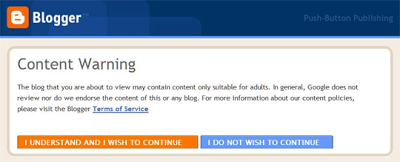
If you are running an adult blogspot blog. Google will not prefer it unless you won’t do some  setting in your blog. since search engines don’t want to give same rule and regulations for all contents. so if you have adult contents like escorts blogs, adult pics and stories or any thing, you must need to make some changes according to blogging tips. if you will not follow these setting, your blog will be deleted when ever google crawler will come and see your content.. it is recommended to bloggers not to put adult contents in blogger blog and if they are doing they have to customize the settings for the safety of Internet.
after clicking an adult blog reader will see a warning message as shown in fig.

Warning message for Adult content in a blog

This warning message will take away from the blog if they don’t wanna enter. You must  set up these settings for an adult blog.

How to customize :
1. Go to your blogger Dashboard.
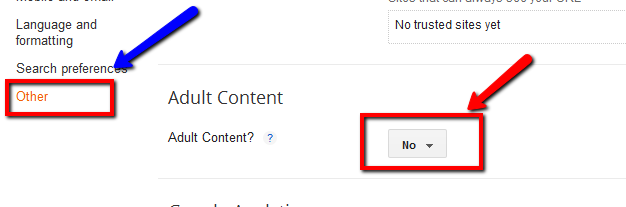
2. Click on setting
3. Click on other
4.Change Adult content option from no to yes.(You will do only if ur blog contains Adult content)
5. click on save.

setting for adult blogger blogs

6. You have done the setting for your blog..now u don’t need to be worry for your blog deletion.
Advantage :
1. Good for readers to show them a warning message regarding the content
2. Google will not harm your blog.

Filed Under: Blogger tips, SEO Tagged With: Blogger Setting for Adult Content

Add a beautiful stylish popular post gadget in Blogger with round thumbnail Image

June 9, 2013 By Sanjay Choubey Leave a Comment

without thumbnail

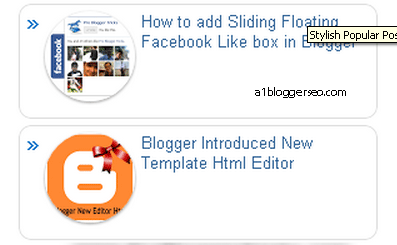
Hello every one. I hope you r doing well.  Today m sharing you a gadget for making your blogspot blog more beautiful.  It is for popular posts.you can set popular posts up to 10 and you can show image thumbnail or just a simple gadget in a blog. In left side you are seeing the stylish popular gadget without thumbnail in the left. you can see the demo for the gadget with thumbnail also. i have posted a pic containing image thumbnail.
I will recommend you to must use this widget since it will increase your site’s beauty.
since this code is in css so it will not effect loading time for your blog.
This blogger gadget will  help in picking & showing the top visited posts inside your blogger blog in front of your visitors ” while using this gadget readers are easily landed on your previous Top ranking posts without searching them hardly. This gadget works on some fixed criteria. If you will select for 7 days. it will show all the popular posts according to selected days. if we could keep it for a month then it will show all the top visited posts according to the selected

with thumbnail

duration of Time. if we could keep it for all the time it will show all the popular post from the starting date of your blog..

How To add Stylishly Popular Post widget in Blogger Blog ?
step 1 : 
Go to your  blogger Dashboard:
Selct Layout
Click on the Add a gadget and  choose the gadget named popular posts gadget

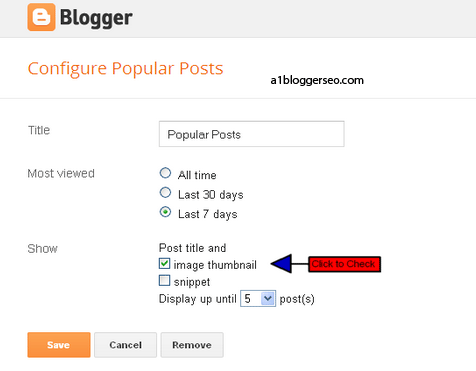
Click all proper options below as shown in fig.below if you need to show posts with thumbnail if you don’t wanna show the thumbnail then don’t select it.

Don’t select Image thumbnail option if you don’t wanna show images .

If you select snippet the summary will be shown.
Select digits from the option(maximum is 10) how many posts you wanna show.
Nest step:
Go to blogger template:
Click on edit html
Search for ]]></b:skin> and post the following code before it.

.popular-posts ul{padding-left:0px;}
.popular-posts ul li {background: #FFF url(https://4.bp.blogspot.com/-oOVUW06ghgo/UHwuqL9TltI/AAAAAAAAGKU/Nj4DQnvft8k/s1600/1.gif)  no-repeat scroll 5px 10px;
list-style-type: none;
margin:0 0 5px 0px;
padding:5px 5px 5px 20px !important;
border: 1px solid #ddd;
border-radius:10px;
-moz-border-radius:10px;
-webkit-border-radius:10px;
}
.popular-posts ul
li:hover {
border:1px solid #6BB5FF;
}
.popular-posts ul
li a:hover {
text-decoration:none;
}
.popular-posts .item-thumbnail img {
webkit-border-radius: 100px;
-moz-border-radius: 100px;
border-radius: 100px;
-webkit-box-shadow: 0 1px 3px rgba(0, 0, 0, .4);
-moz-box-shadow: 0 1px 3px rgba(0, 0, 0, .4);
box-shadow: 0 1px 3px rgba(0, 0, 0, .4);
}

You are done.. finally click on save…
Nyc…you have done..Enjoy..
If you have any query plz ask to me in the comment box…
Thank you…God bless!!!!!

Filed Under: Blogger gadgets, Blogger tips, Blogger widgets

How to add Social sharing button below post title in Blogger

June 7, 2013 By Sanjay Choubey Leave a Comment

Adding some social media icons below every blog post is a great idea. since it will improve your reputation as well as you will get a huge traffic from the social sites. your post will be shared by visitors.
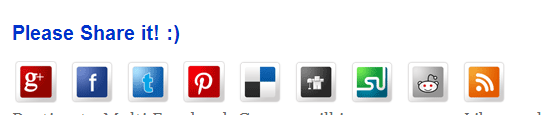
M sharing two beautiful widget containing twitter, Facebook, Stumbleupon and google plus. as shown in the figure, 1st one will look like this.

Social Sharing Widget in Blogger

Social Sharing Widget Number 1 :

Social Sharing Widget Number 2 :

So i will recommend you to any of  these widget for your blogger blog and make a good online reputation among your readers.
To install Social Sharing widget below blog Title.

Login to your Blogger Dashboard.
Click on template .(I will recommend you to backup your template first )
Now click on Edit HTML.
Search for </head>  (By pressing control + f )and place the JavaScript code mentioned below just before this tag.
<script src=’http://apis.google.com/js/plusone.js’ type=’text/javascript’/>
If you are already using Google+ recommend button in your blog, then this code will already exist there. You can skip the above step.
Now search for <data:post.body/>, it might be occurring more than once in your blog.
Most of the users get confused with this. It depends upon the template, which code is going to work for you. In my case it was the second last one. You can try the last one and the second last one.
Now place the any of the following code just before <data:post.body/>

Code for Widget Number 1:

<b:if cond=’data:blog.pageType == &quot;item&quot;’>
    <div style=’box-shadow:0px 0px 1px 2px #000;’ id=”UT-social-share”>
        <table align=’center’ border=’0′>
            <tr>
                <td>
                    <a class=’twitter-share-button’ data-count=’horizontal’ data-lang=’en’ data-via=’ersnjy‘ expr:data-text=’data:post.title’ expr:data-url=’data:post.url’ href=’http://twitter.com/share’ rel=’nofollow’/>
                    <b:if cond=’data:post.isFirstPost’>
                    <script src=’http://platform.twitter.com/widgets.js’ type=’text/javascript’></script></b:if>
                </td>
                <td>

                    <iframe allowTransparency=’true’ expr:src=’&quot;http://www.facebook.com/plugins/like.php?href=&quot; + data:post.url + &quot;&amp;layout=button_count&amp;show_faces=false&amp;width=100&amp; action=like&amp;font=arial&amp;colorscheme=light&quot;’ frameborder=’0′ scrolling=’no’ style=’border:none; overflow:hidden; margin-left:20px; width:100px; height:20px;’/>
                </td>
                <td>
                    <div style=’margin-right:25px;’>
                        <script expr:src=’&quot;http://www.stumbleupon.com/hostedbadge.php?s=1&amp;r=&quot; + data:post.url’/>
                    </div>
                </td>
                <td>
                    <div style=’margin-right:5px;’><g:plusone expr:href=’data:post.url’ size=’medium’/>
                    </div>
                </td>
            </tr>
        </table>
    </div>
</b:if>
<br/>


You can twitter username with yours (highlighted with red).
Click on save template and view any post from your blog you will see the change. This widget will appear only when you click on Post title. not on Home page.

If you will prefer to show this post on Home page also then just Remove the yellow colored text from above.
If you want to remove the shadow completely then remove the style attribute from the second line. It will look like this:
 <div  id=’UT-social-share’>

Code for Widget Number 2 :

<style>
/*——–Flipper Sharing Widget ——*/
.flipper a {
display:block;
height:48px;
width:48px;
padding:0 4px;
float:left;
background:transparent url(https://4.bp.blogspot.com/-dlD3BDKTZjA/T9IuXkfhSeI/AAAAAAAAGno/s8BGOkjdwX0/s1600/flipper.png)

no-repeat;
-webkit-transition: ease-in 0.15s all;
-moz-transition: ease-in 0.15s all;
-o-transition: ease-in 0.15s all;
-ms-transition: ease-in 0.15s all;
transition: ease-in 0.15s all;
cursor:pointer;
}

.flipper a.googleplus {
background-position: 0px -348px;
}
.flipper a.googleplus:hover {
background-position: 0px -406px;
}

.flipper a.pinterest {
background-position: 0px -464px;
}
.flipper a.pinterest:hover {
background-position: 0px -522px;
}

.flipper a.delicious {
background-position: 0px 0px;
}
.flipper a.delicious:hover {
background-position: 0px -58px;
}
.flipper a.digg {
background-position: 0px -116px;
}
.flipper a.digg:hover {
background-position: 0px -174px;
}
.flipper a.stumbleupon {
background-position: 0px -812px;
}
.flipper a.stumbleupon:hover {
background-position: 0px -870px;
}
.flipper a.technorati {
background-position: 0px -928px;
}
.flipper a.technorati:hover {
background-position: 0px -406px;
}
.flipper a.twitter {
background-position: 0px -928px;
}
.flipper a.twitter:hover {
background-position: 0px -986px;
}
.flipper a.facebook {
background-position: 0px -232px;
}
.flipper a.facebook:hover {
background-position: 0px -290px;
}
.flipper a.reddit {
background-position: 0px -580px;
}
.flipper a.reddit:hover {
background-position: 0px -638px;
}
.flipper a.rss {
background-position: 0px -696px;
}
.flipper a.rss:hover {
background-position: 0px -754px;
}

.Pleaseshare{
margin:10px 0px;
color:#333333;
font-weight:bold;
font-size:20px;
font-family:sans-serif;
}
</style>

<div class=’flipper’>
<b:if cond=’data:blog.pageType == &quot;item&quot;’>
<div class=”Pleaseshare”>
Please Share it! 🙂 </div>

<!–Google Plus–>
<a class=’googleplus’ expr:href=’&quot;http://plus.google.com/share?url=&quot; + data:post.url’ rel=’external nofollow’

target=’_blank’ title=’+1 it :&gt;’/>

<!–Facebook–>
<a class=’facebook’ expr:href=’&quot;http://www.facebook.com/sharer.php?u=&quot; + data:post.url + &quot;&amp;t=&quot; +

data:post.title’ rel=’external nofollow’ target=’_blank’ title=’Share this on Facebook :&gt;’/>

<!– Twitter –>
<a class=’twitter’ expr:href=’&quot;http://twitter.com/share?url=&quot; + data:post.url + &quot;&amp;title=&quot; +

data:post.title’ rel=’external nofollow’ target=’_blank’ title=’Tweet this :&gt;’/>

<!– Pinterest –>
<a class=’pinterest’  href=”http://pinterest.com/” rel=’external nofollow’ target=’_blank’ title=’Pin it :&gt;’/>

<!– Delicious –>
<a class=’delicious’ expr:href=’&quot;http://del.icio.us/post?url=&quot; + data:post.url + &quot;&amp;title=&quot; +

data:post.title’ rel=’external nofollow’ target=’_blank’ title=’Add this to Delicious :&gt;’/>

<!–DIGG–>
<a class=’digg’ expr:href=’&quot;http://digg.com/submit?phase=2&amp;url=&quot;  + data:post.url’ rel=’external nofollow’

target=’_blank’ title=’Digg this :&gt;’/>
<!–Stumble–>
<a class=’stumbleupon’ expr:href=’&quot;http://www.stumbleupon.com/submit?url=&quot; + data:post.url +

&quot;&amp;title=&quot; + data:post.title’ rel=’external nofollow’ target=’_blank’ title=’Stumble this :&gt;’/>

<!– Reddit –>
<a class=’reddit’ expr:href=’&quot;http://reddit.com/submit?url=&quot; + data:post.url + &quot;&amp;title=&quot; +

data:post.title’ rel=’external nofollow’ target=’_blank’ title=’Add this to Reddit :&gt;’/>
<!–RSS –>
<a class=’rss’ expr:href=’data:blog.homepageUrl + &quot;feeds/posts/default&quot;’ title=’Bookmark plz :&gt;’/>
</b:if></div>
<div style=”clear:both”/>

After the customization save your template and review the changes you made.
Congrats you have done !!!!! Just save the template and enjoy

  • You should check out some more useful blogger widgets by Sanjay choubey.

If you like my work, you can show your regards by sharing it on fb, twitter or google plus.
If you have any issue with this widget, kindly let me know in the comment section.
Thanks to be here..God bless..!!!!!

Filed Under: Blogger tips, Blogger widgets, SEO, social sites Tagged With: social sharing widget in blogger post

  • « Previous Page
  • 1
  • …
  • 32
  • 33
  • 34
  • 35
  • 36
  • Next Page »

Locations I Serve

Delhi | Noida | Gurugram | Ghaziabad | Faridabad | Chennai | Patna | Mumbai | Bangalore | Hyderabad | Kolkata | Pune | Jaipur | Lucknow | Chandigarh | Bhopal | Indore | Nagpur | Ahmedabad | Vadodara | Rajkot | Coimbatore | Kochi | Trivandrum | Ranchi | Bhubaneswar | Guwahati | Vishakhapatnam | Vijayawada | Mysore | Mangalore | Ludhiana | Amritsar | Jalandhar | Dehradun | Meerut | Kanpur | Varanasi | Prayagraj | Agra | Gwalior | Jabalpur | Raipur | Bilaspur | Durg-Bhilai | Jamshedpur | Dhanbad | Siliguri | Shimla | Srinagar | Jammu | Goa | Rishikesh | Greater Noida | Surat

Copyright @ Sanjay Choubey
WhatsApp Call Now