Sanjay Choubey

  • Home
  • Services
    • SEO
    • PPC
    • SMO
    • SEO Niche
      • Education SEO
      • Dental SEO
  • SEO Packages
  • About
  • Blog
  • Results
  • Reviews
  • Contact

Add a beautiful stylish search box in your blogger blog.

June 19, 2013 By Sanjay Choubey Leave a Comment

Blogger gives its default search box for bloggers, Many Bloggers ignores it due to its very simple look. Since adding a  stylish search box in your blogger blog is a good idea, since it will attract your readers, and your bounce rate will become low, Since readers will attract towards it and will search there queries through your entire blog posts.

Stylish search box

Know how to install a stylish email subscription box in your Blog. 

 
Features :
  • This widget looks cool so it will enhance your blog looks.
  • you can place it where you want in your blogspot blog.
  • Can suit in every template
  • The coding is in css so it won’t effect your blog’s loading time.

How to install it :

  • Open your Blogger Dashboard.
  • Click on Layout
  • Click on add a gadget and place below css code in it and click on save.


<style type=”text/css”>
    #searchboxbytobt
    {
    background: #eaf8fc;
    background-image: -moz-linear-gradient(#fff, #d4e8ec);
    background-image: -webkit-gradient(linear,left bottom,left top,color-stop(0, #d4e8ec),color-stop(1, #fff));

    -moz-border-radius: 35px;
    border-radius: 35px;

    border-width: 1px;
    border-style: solid;
    border-color: #c4d9df #a4c3ca #83afb7;
    width: 270px;
    height: 35px;
    padding: 10px;

    overflow: hidden;
    }

    #search, #submit
    {
    float: left;
    }

    #search
    {
    padding: 5px 9px;
    height: 23px;
    width: 180px;
    border: 1px solid #a4c3ca;
    font: normal 13px ‘trebuchet MS’, arial, helvetica;
    background: #f1f1f1;

    -moz-border-radius: 50px 3px 3px 50px;
    border-radius: 50px 3px 3px 50px;
    -moz-box-shadow: 0 1px 3px rgba(0, 0, 0, 0.25) inset, 0 1px 0 rgba(255, 255, 255, 1);
    -webkit-box-shadow: 0 1px 3px rgba(0, 0, 0, 0.25) inset, 0 1px 0 rgba(255, 255, 255, 1);
    box-shadow: 0 1px 3px rgba(0, 0, 0, 0.25) inset, 0 1px 0 rgba(255, 255, 255, 1);
    }

    /* ———————– */

    #submit
    {
    background: #6cbb6b;
    background-image: -moz-linear-gradient(#95d788, #6cbb6b);
    background-image: -webkit-gradient(linear,left bottom,left top,color-stop(0, #6cbb6b),color-stop(1, #95d788));

    -moz-border-radius: 3px 50px 50px 3px;
    border-radius: 3px 50px 50px 3px;

    border-width: 1px;
    border-style: solid;
    border-color: #7eba7c #578e57 #447d43;

    -moz-box-shadow: 0 0 1px rgba(0, 0, 0, 0.3), 0 1px 0 rgba(255, 255, 255, 0.3) inset;
    -webkit-box-shadow: 0 0 1px rgba(0, 0, 0, 0.3), 0 1px 0 rgba(255, 255, 255, 0.3) inset;
    box-shadow: 0 0 1px rgba(0, 0, 0, 0.3), 0 1px 0 rgba(255, 255, 255, 0.3) inset;


    height: 35px;
    margin: 0 0 0 10px;
    padding: 0;
    width: 60px;
    cursor: pointer;
    font: bold 14px Arial, Helvetica;
    color: #23441e;

    text-shadow: 0 1px 0 rgba(255,255,255,0.5);
    }

    #submit:hover
    {
    background: #95d788;
    background-image: -moz-linear-gradient(#6cbb6b, #95d788);
    background-image: -webkit-gradient(linear,left bottom,left top,color-stop(0, #95d788),color-stop(1, #6cbb6b));
    }


    #submit:active
    {
    background: #95d788;
    outline: none;

    -moz-box-shadow: 0 1px 4px rgba(0, 0, 0, 0.5) inset;
    -webkit-box-shadow: 0 1px 4px rgba(0, 0, 0, 0.5) inset;
    box-shadow: 0 1px 4px rgba(0, 0, 0, 0.5) inset;
    }


    #submit::-moz-focus-inner
    {
    border: none;
    }

    /* ———————– */

    #search::-webkit-input-placeholder {
    color: #9c9c9c;
    font-style: italic;
    }

    #search:-moz-placeholder {
    color: #9c9c9c;
    font-style: italic;
    }

    #search.placeholder {
    color: #9c9c9c !important;
    font-style: italic;
    }

    #search:focus
    {
    border-color: #8badb4;
    background: #fff;
    outline: none;
    }
    </style>
    <form id=”searchboxbytobt” action=”/search” method=”get”>
    <input id=”search” name=”q” type=”text” placeholder=”Type your search here” />
    <input id=”submit” type=”submit” value=”Search” />
    </form>
Filed Under: Blogger gadgets, Blogger tips, Blogger widgets, wordpress tips Tagged With: search box for Blogger

Show stylish recent comments box in your Blogger

June 18, 2013 By Sanjay Choubey 2 Comments

Hi every one, today m posting another blogger trick for showing recent comments on your blog. This is a good  idea for you to be connected with your readers. When ever you will open your blog you can easily watch recent comments from this gadget, and also it is useful for your blog readers so that they can see from home page who has been posted as a comment on your post  from the comment box. or you (admin) have been applied on there issue or not…..
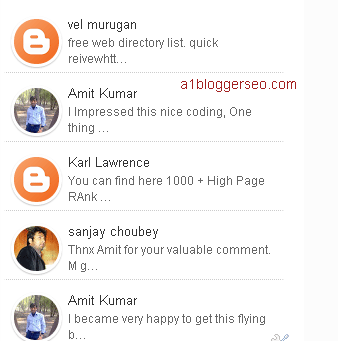
The stylish comment box looks like as shown in below figure.

Recent comments widget for blogger

Why it is useful for a blogspot blog:
your blog’s recent comments will be shown on the home page. it will be helpful for ur site in some manners.
your site will become more user friendly.

Try this one also How to – Create stylish popular posts widget in Blogger

How to install:
It is easy to install Recent comment box. follow these steps now-

    • Go to Blogger Dashboard.
    • Click on layout
    • Click on add a gadget and select add a html/javascript
    • Paste the following code
<style type=”text/css”>
ul.btt_recent_comments {
list-style: none;
margin: 0;
padding: 0;
}
.btt_recent_comments li {
-webkit-transition: .5s;
-moz-transition: .5s;
-ms-transition: .5s;
-o-transition: .5s;
transition: .5s;
border: 2px solid transparent;
}
.btt_recent_comments li:hover {
-webkit-transform: scale(1.2) translate(15px);
-moz-transform: scale(1.2) translate(15px);
-ms-transform: scale(1.2) translate(15px);
-o-transform: scale(1.2) translate(15px);
transform: scale(1.2) translate(15px);
box-shadow: 0 0 20px 1px #aaa;}
.btt_recent_comments li {
background: none!important;
margin: 5px!important;
padding: 5px!important;
display: block;
clear: both;
overflow: hidden;
list-style: none;
}
.btt_recent_comments li .avatarImage {
padding: 3px;
background: #fefefe;
-webkit-box-shadow: 0 1px 1px #ccc;
-moz-box-shadow: 0 1px 1px #ccc;
box-shadow: 0 1px 1px #ccc;
float: left;
margin: 0 6px 0 0;
position: relative;
overflow: hidden;
}
.avatarRound {
-webkit-border-radius: 100px;
-moz-border-radius: 100px;
border-radius: 100px;
}
.btt_recent_comments li img {
padding: 0;
position: relative;
overflow: hidden;
display: block;
}
.btt_recent_comments li span {
margin-top: 3px;
color: #666;
display: block;
font-size: 12px;
line-height: 1.4;
}
</style>
<script type=”text/javascript”>
//<![CDATA[
// Recent Comments Settings
var
numComments  = 5,
showAvatar  = true,
avatarSize  = 45,
roundAvatar = true,
characters  = 40,
showMorelink = false,
moreLinktext = “More ?”,
defaultAvatar  = “http://1.bp.blogspot.com/-al82MhjzNaU/UUSpupsh-uI/AAAAAAAADAE/c71rFRuiDlg/s320/avatar.png”,
hideCredits = true;
//]]>
</script>
<script type=’text/javascript’>
//<![CDATA[
eval(function(p,a,c,k,e,r){e=function(c){return(c<a?”:e(parseInt(c/a)))+((c=c%a)>35?String.fromCharCode(c+29):c.toString(36))};if(!”.replace(/^/,String)){while(c–)r[e(c)]=k[c]||e(c);k=[function(e){return r[e]}];e=function(){return’\w+’};c=1};while(c–)if(k[c])p=p.replace(new RegExp(‘\b’+e(c)+’\b’,’g’),k[c]);return p}(‘9 G=G||5,8=8||1z,w=w||1w,m=m||”j://V.L.g/1i/?d=1b”,F=F||” 1c &1D;”,x=(A x===’B’)?h:x,o=(A o===’B’)?Q:o,q=(A q===’B’)?h:q,r=(A r===’B’)?Q:r;18 14(C){9 7;7='<R J=”14″>’;U(9 i=0;i<G;i++){9 z,y,2,k;4(i==C.O.e.D)X;7+=”<10>”;9 e=C.O.e[i];U(9 l=0;l<e.E.D;l++){4(e.E[l].19==’1a’){z=e.E[l].v;X}}y=e.M[0].1x.$t;2=e.M[0].1E$16.N;4(2.f(“/P/”)!=-1){2=2.p(“/P/”,”/s”+8+”-c/”)}b 4(2.f(“/S/”)!=-1){2=2.p(“/S/”,”/s”+8+”-c/”)}b 4(2.f(“/T-c/”)!=-1&&2.f(“j:”)!==0){2=”j:”+2.p(“/T-c/”,”/s”+8+”-c/”)}b 4(2.f(“H.g/n/17-W.I”)!=-1){2=”j://3.Y.Z.g/-1d-1e/1f/1U/1g/s”+8+”/1h.11″}b 4(2.f(“H.g/n/1j-W.I”)!=-1){2=”j://3.Y.Z.g/-1k/1l/1m/1n/s”+8+”/1o.11″}b 4(2.f(“H.g/n/1p.I”)!=-1){4(m.f(“L.g”)!=-1){2=m+”&s=”+8}b{2=m}}b{2=2}4(x===h){4(q===h){k=”1q”}b{k=””}7+=”<12 J=\”1s “+k+”\”><n J=\””+k+”\” N=\””+2+”\” 1t=\””+y+”\” 1u=\””+8+”\” 1v=\””+8+”\”/></12>”}7+=”<a v=\””+z+”\”>”+y+”</a>”;9 13=e.1y.$t;9 6=13.p(/(<([^>]+)>)/1A,””);4(6!==””&&6.D>w){6=6.1B(0,w);6+=”&1C;”;4(o===h){6+=”<a v=\””+z+”\”>”+F+”</a>”}}b{6=6}7+=”<u>”+6+”</u>”;7+=”</10>”}7+='</R>’;9 K=””;4(r===h){K=”15:1F;”}7+=”<u 1G=\”1H-1I:1J;15:1K;1L-1M:1N;”+K+”\”>1O 1P <a v=\”j://V.1Q.1R/\”>1S</a></u>”;1T.1r(7)}’,62,119,’||authorAvatar||if||commBody|commentsHtml|avatarSize|var||else|||
entry|indexOf|com|true||http|avatarClass||defaultAvatar|img|showMorelink|replace|roundAvatar|
hideCredits|||span|href|characters|showAvatar|authorName|commentlink|typeof|undefined|
btt|length|link|moreLinktext|numComments|blogblog|gif|class|hideCSS|gravatar|author|src|feed|
s1600|false|ul|s220|s512|for|www|rounded|break|bp|blogspot|li|png|div|commHTML|
btt_recent_comments|display|image|b16|function|rel|alternate|mm|More|AaI8|1X32ZM|
TxMKLVzQ5BI|QYau8ov2blE|btt_blogger_logo|avatar|openid16|9lSeVyNRKx0|TxMKMIqMNuI|
AAAAAAAABYc|8iasY0xpLzc|btt_openid_logo|blank|avatarRound|write|avatarImage|alt|width|
height|40|name|content|60|ig|substring|hellip|raquo|gd|none|style|font|size|10px|block|text|
align|right|Widget|by|SoftGlad|com|SoftGlad|document|AAAAAAAABYY’.split(‘|’),0,{}))
//]]>
</script>
<script src=”/feeds/comments/default?alt=json&amp;callback=btt_recent_comments&amp;max-results=5″ type=”text/javascript”></script>

Now finally click on save..
Have any query??? Let me know in the comment box.

Filed Under: Blogger gadgets, Blogger tips, Blogger widgets

How to install Fully css animated Download button in Blogger.

June 17, 2013 By Sanjay Choubey 2 Comments

It is important to install a good looking  animated Download link in your Blogger. It will give users to see Demo or Download link. Your blog beauty will be increased with these links.

css button demo for Blogger
Demo

This button has been created in Pure CSS3 it means any image or javascript code is not used. This button may be really helpful for game/software download blogs. So a live working demo of this button can be seen by clicking the below button. You will see the button at the end of the post.

How to Add Download Button in Blogger:  
Follow these steps in your blog.

  • Go to your blogger desgboard
  • Click on template
  • Click on edit html
  • press cntl+f and find this code </body>  
  • Just above paste the following code

 <style>

.abt-button {
margin: 50px auto;
width: 200px;
}

/* Get this button at AllBloggerTricks.com */

.abt-button a {
background: -moz-linear-gradient(center top , #00B7EA 0%, #009EC3 100%) repeat scroll 0 0 transparent;
color: white;
display: block;
font: 17px/50px Helvetica,Verdana,sans-serif;
height: 50px;
text-align: center;
text-decoration: none;
text-transform: uppercase;
width: 200px;
position: relative;
z-index: 2;

/*TYPE*/
color: white;
font: 17px/50px Helvetica, Verdana, sans-serif;
text-decoration: none;
text-align: center;
text-transform: uppercase;

/*GRADIENT*/
background: #00b7ea; /* Old browsers */
background: -moz-linear-gradient(top, #00b7ea 0%, #009ec3 100%); /* FF3.6+ */
background: -webkit-gradient(linear, left top, left bottom, color-stop(0%,#00b7ea), color-stop(100%,#009ec3)); /* Chrome,Safari4+ */
background: -webkit-linear-gradient(top, #00b7ea 0%,#009ec3 100%); /* Chrome10+,Safari5.1+ */
background: -o-linear-gradient(top, #00b7ea 0%,#009ec3 100%); /* Opera 11.10+ */
background: -ms-linear-gradient(top, #00b7ea 0%,#009ec3 100%); /* IE10+ */
background: linear-gradient(top, #00b7ea 0%,#009ec3 100%); /* W3C */
filter: progid:DXImageTransform.Microsoft.gradient( startColorstr=&#39;#00b7ea&#39;, endColorstr=&#39;#009ec3&#39;,GradientType=0 ); /* IE6-9 */
}

.abt-button a, .abt-button p {
-webkit-border-radius: 10px;
-moz-border-radius: 10px;
border-radius: 10px;

-webkit-box-shadow: 2px 2px 8px rgba(0,0,0,0.2);
-moz-box-shadow: 2px 2px 8px rgba(0,0,0,0.2);
box-shadow: 2px 2px 8px rgba(0,0,0,0.2);
}
.abt-button p {
background: #222222;
color: #FFFFFF;
display: block;
font: 12px/45px Helvetica,Verdana,sans-serif;
height: 40px;
margin: -40px 0 0 10px;
position: absolute;
text-align: center;
transition: margin 0.5s ease 0s;
width: 180px;
z-index: 1;
/*TRANSITION*/
-webkit-transition: margin 0.5s ease;
-moz-transition: margin 0.5s ease;
-o-transition: margin 0.5s ease;
-ms-transition: margin 0.5s ease;
transition: margin 0.5s ease;

}
.abt-button:hover .up {
margin: -5px 0 0 10px !important;
}
.abt-button:hover .down {
line-height: 35px !important;
margin: -85px 0 0 10px !important;
}
.abt-button a:active {

background: #00b7ea; /* Old browsers */
background: -moz-linear-gradient(top,  #00b7ea 36%, #009ec3 100%); /* FF3.6+ */
background: -webkit-gradient(linear, left top, left bottom, color-stop(36%,#00b7ea), color-stop(100%,#009ec3)); /* Chrome,Safari4+ */
background: -webkit-linear-gradient(top,  #00b7ea 36%,#009ec3 100%); /* Chrome10+,Safari5.1+ */
background: -o-linear-gradient(top,  #00b7ea 36%,#009ec3 100%); /* Opera 11.10+ */
background: -ms-linear-gradient(top,  #00b7ea 36%,#009ec3 100%); /* IE10+ */
background: linear-gradient(top,  #00b7ea 36%,#009ec3 100%); /* W3C */
filter: progid:DXImageTransform.Microsoft.gradient( startColorstr=&#39;#00b7ea&#39;, endColorstr=&#39;#009ec3&#39;,GradientType=0 ); /* IE6-9 */

}
.abt-button:active .up {
margin: -20px 0 0 10px !important;
}
.abt-button:active .down {
margin: -70px 0 0 10px !important;
}
</style>

After adding this code click on save and now follow the next step :
 How to add css button on desired place in your blog :
 So you have successfully added css code in your blog for inserting css animated button in your blog.
Now follow these steps to add Button where you want :
When you are creating a post click on html mode from compose. you will see this option in top left side Add the following code where you want to display the css button in your blog.
 <div class=”abt-button”>
      <a href=”#” target=”blank”>Download</a>
         </div>
 Now replace # with your link and text Download with your Button text. 
All done…Enjoy!!!!!!
If you have any issue..Feel free to ask to me in comment section. 

Filed Under: Blogger tips, SEO Tagged With: Add Download Button in Blogger

How to add an animated cute flying twitter bird widget to your blogger

June 16, 2013 By Sanjay Choubey 3 Comments

Twitter is the best boomarking site and 2nd most popular social site in the World. M sharing a wonderful Blogger widget for you. There will be a cute flying bird. it will fly from one place to another in your blog.

Twitter bird for Blogger

“There will be a single twitter bird in Blue color and will keep flying in your blog.”

Demo

Benefits of this widget:

  • Small coding so won’t effect blog loading time
  • Way to increase twitter followers
  • This cute bird looks awesome and your blog will look more attractive.
  • Will suit on every Blogger template

How to install :

  • Open Blogger Dashboard
  • Click on layout
  • Click on add a Gadget
  • Select Html/Javascript
  • Add following code
<!– Twitter Bird Widget for Blogger by Technouniversity –><script type=“text/javascript” src=“http://technouniversityworldjavascript-testing.googlecode.com/files/tuwtwitterbird.js”></script><script type=“text/javascript”>var twitterAccount = “ersnjy“; var tweetThisText = ” <data:blog.pageTitle/> : <data:blog.url/> “; tripleflapInit(); </script><span style=“font-size:11px;position:absolute;”><a title=‘Blogger Widget by TUW’ href=“https://sanjaychoubey.com” target=‘_blank’>Blogger Tricks and Tips</a></span><!– Twitter Bird Widget for Blogger by computer entertainment–> 
 
  • Replace ersnjy with your twitter user id
  • Click on save.
  • All done !!!!Enjoy!!! 
  •  

Filed Under: Blogger gadgets, Blogger tips, Blogger widgets, SEO, social sites

Create a beautiful email subscription box in Blogger

June 16, 2013 By Sanjay Choubey 2 Comments

It is mandatory for your blog to install a good looking email subscription box. since it will increase your website’s beauty and also it will allow your readers to easily subscribe your blog.

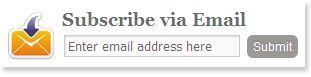
This box looks simple, attractive and good looking font format.It looks exactly as shown in the picture.
All though this widget contains subscribe via email box only.

if you need a blogging widget containing all popular social social profiles you can install all in one social Blogging widget.

Add Email Subscription Widget in Blogger

  • Go to blogger dashboard.
  • Click on layout
  • Click to add a widget
  • Select a html/javascipt widget
  • Leave title empty and insert the following code into the body section.
<style>
.a1bs-email{
background:url(https://4.bp.blogspot.com/_MbejYjGokMM/TSeZHmWJ6oI/AAAAAAAAALE/93ELYyzmi64/s1600/email.png) no-repeat 0px 12px ;
width:300px;
padding:10px 0 0 55px;
float:left;
font-size:1.4em;
font-weight:bold;
margin:0 0 10px 0;
color:#686B6C;
}


.a1bs-emailsubmit{
background:#9B9895;
cursor:pointer;
color:#fff;
border:none;
padding:3px;
text-shadow:0 -1px 1px rgba(0,0,0,0.25);
-moz-border-radius:6px;
-webkit-border-radius:6px;
border-radius:6px;
font:12px sans-serif;
}
.a1bs-emailsubmit:hover{
background:#E98313;
}
.textarea{
padding:2px;
margin:6px 2px 6px 2px;
background:#f9f9f9;
border:1px solid #ccc;
resize:none;
box-shadow:inset 1px 1px 1px rgba(0,0,0,0.1);
-moz-box-shadow:inset 1px 1px 1px rgba(0,0,0,0.1);
-webkit-box-shadow:inset 1px 1px 1px rgba(0,0,0,0.1); font-size:13px;
width:170px;
color:#666;}


</style>
<div class=”a1bs-email”>
Subscribe via Email 
<form action=”http://feedburner.google.com/fb/a/mailverify” id=”feedform” method=”post” target=”popupwindow” onsubmit=”window.open(‘http://feedburner.google.com/fb/a/mailverify?uri=a1bloggerseo‘, ‘popupwindow’, ‘scrollbars=yes,width=550,height=520’);return true”>
<input gtbfieldid=”3″ class=”textarea” name=”email” onblur=”if (this.value == &quot;&quot;) {this.value = &quot;Enter email address here&quot;;}” onfocus=”if (this.value == &quot;Enter email address here&quot;) {this.value = &quot;&quot;;}” value=”Enter email address here” type=”text” />
<input type=”hidden” value=”a1bloggerseo” name=”uri”/><input type=”hidden” name=”loc” value=”en_US”/>
<input class=”a1bs-emailsubmit” value=”Submit” type=”submit” />
</form>
</div>
 
  • Replace a1bloggerseo with your own feedburner id.
  • Now click on save
  • All done..!!!!!!

You can add it in WordPress also. Click here to know how?

Filed Under: Blogger gadgets, Blogger widgets, wordpress tips Tagged With: email subscription Widget in Blogger

  • « Previous Page
  • 1
  • …
  • 31
  • 32
  • 33
  • 34
  • 35
  • 36
  • Next Page »

Locations I Serve

Delhi | Noida | Gurugram | Ghaziabad | Faridabad | Chennai | Patna | Mumbai | Bangalore | Hyderabad | Kolkata | Pune | Jaipur | Lucknow | Chandigarh | Bhopal | Indore | Nagpur | Ahmedabad | Vadodara | Rajkot | Coimbatore | Kochi | Trivandrum | Ranchi | Bhubaneswar | Guwahati | Vishakhapatnam | Vijayawada | Mysore | Mangalore | Ludhiana | Amritsar | Jalandhar | Dehradun | Meerut | Kanpur | Varanasi | Prayagraj | Agra | Gwalior | Jabalpur | Raipur | Bilaspur | Durg-Bhilai | Jamshedpur | Dhanbad | Siliguri | Shimla | Srinagar | Jammu | Goa | Rishikesh | Greater Noida | Surat

Copyright @ Sanjay Choubey
WhatsApp Call Now