Sanjay Choubey

  • Home
  • Services
    • SEO
    • PPC
    • SMO
    • SEO Niche
      • Education SEO
      • Dental SEO
  • SEO Packages
  • About
  • Blog
  • Results
  • Reviews
  • Contact

How to create and publish Blogger feed using Feed burner for email subscription

June 23, 2013 By Sanjay Choubey 6 Comments

Hello viewers, Today we will learn how to create a feed in blogger, so that after creation we can put an email subscription widget in a Blogspot blog.It is so important for a blog to create its feed using feedburner.
i accept that its little bit lenthy but not tough.
You can read – how to add twitter tab in a facebook page
Benefits :

  • It will provide you to enable email subscription option
  • You can post adsense adds within your feed
  • Your blog post can be automatically posted to twitter and also you can make setting in twitter for automatic publishing on facebook.

There are also many features of feeds. This post will explain How to create a feed using feedburner. Follow these easy steps to start now.

 How to create and publish Blogger feed using Feed burner for email subscription

  • Go to feedburner
  • Login with ur google account and password
  • In feedburner Dashboard, Enter your feed address in this format:

http://www.sanjuchoubey.blogspot.com/feeds/posts/default?alt=rss

(You have to change your blog address with sanjuchoubey.blogspot.com)
  • After adding this click on next button as shown in below figure.
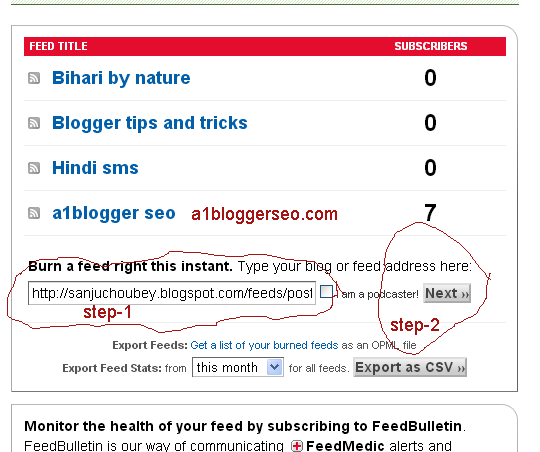

Type a feed and then click on next
  • You have to enter your feed in step-1 area after insertion click on next
  • you will see the window as shown in fig.


You have to change feed address with exactly what u want


Important :

You have to change feed address in your case if you choose an existing feed address url it will be error, so it is recommended to you that change the feed address with exactly what you want


  • After changing feed address once, Click on next
  • you will see a new page will be open showing this as shown in fig.
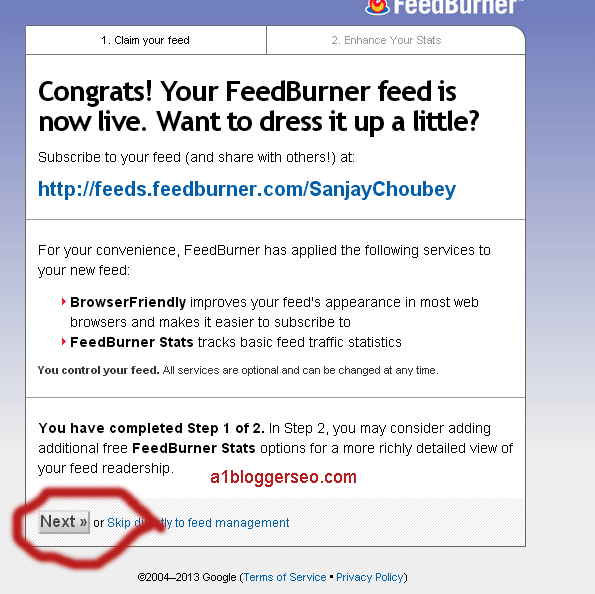


This is ur feed address
  • Your feed address has been created but u need to do some settings. click on the options as shown in fig. and then after click on next:
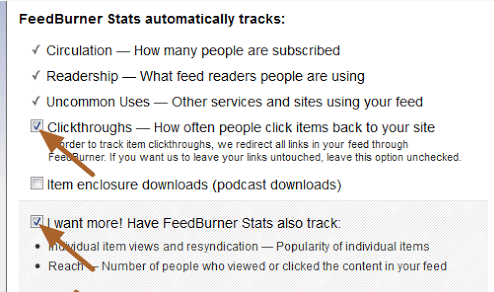
Click on options as shown in fig.
  • It is done you will see a message that ur feed is updated.

Now you have to redirect your default blog feed to feedburner feed in ur blog spot blog

Steps :

  • Go to Blogger Dash board
  • Click on settings
  • Now click on other
  • Now you have to enter your feed burner feed in Post feed redirect url as shown in the fig.
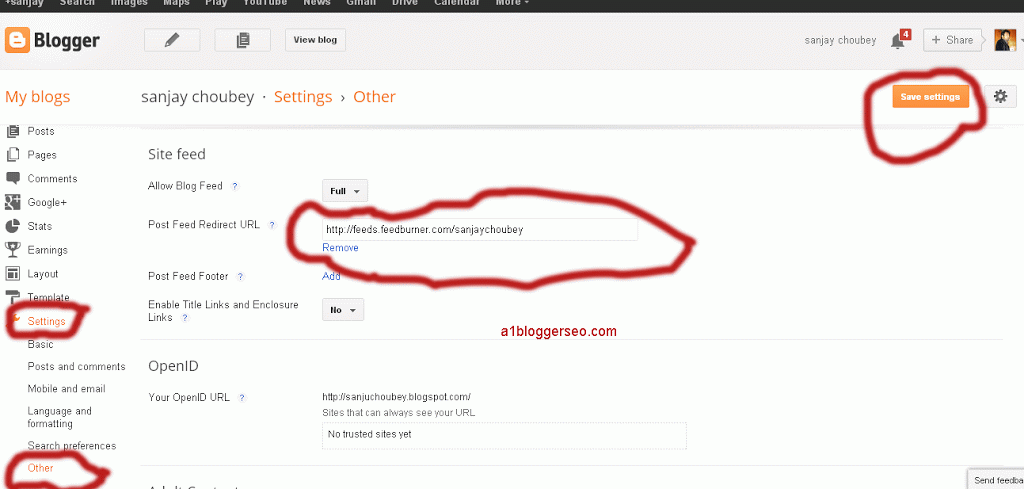
Do the setting as shown in the fig.
  • Now click on save your default blog feed will be redirected to Feedburner feed url. 

Note: If you want to activate email subscription then must read my  article how to activate email subscription in Blogger and add a subscription box.

All done..!!!! If you are facing any problem, plz let me know. God bless!!!!tc!!!!
 

Filed Under: Blogger tips, SEO

How to add a third party widget in WordPress.

June 21, 2013 By Sanjay Choubey Leave a Comment

Hello friends, Since this site is more concentrate on Blogging via Blogger, It doesn’t mean that all the Blogger widgets are for Blogger only. you can add it in WordPress also. Every blogging platform gives you the option to add third party gadgets. In case Of wordpress, it is easy to add a html/javscript gadget.
For adding wordpress widget, Follow these easy steps:

Must read : List of Widgets which can be implement in  wordpress

Steps for adding widgets in WordPress :

  • Go to Word press Dashboard
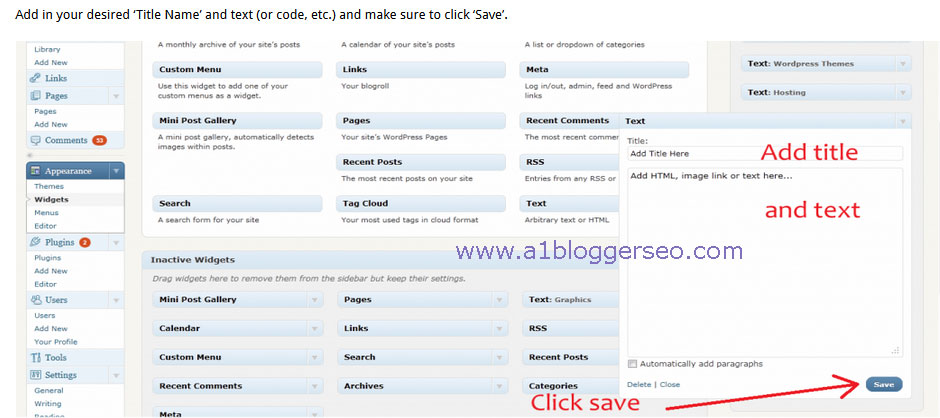
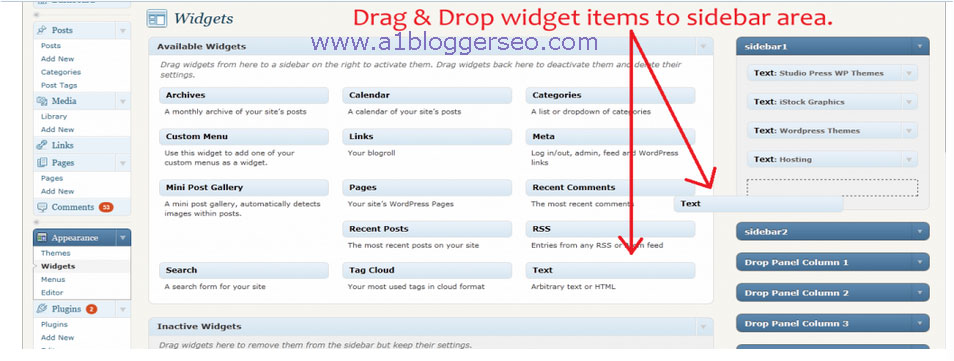
  • Click on appearance as shown in below fig.
Drag text in sidebar shown up in Right

  • After clicking on apperance Click on widgets.
  • Now select text widget and drag it in the right side named sidebar
  • Now you can write title as you wish and in copy any Blogger widget code from my tutorial
  • Now click on save. m sharing another pic showing this process.
  •  You may re arrange widgets same as happens in Blogger.
  •  All done”!!!! Go and keep adding useful widgets for your blog/website.
If u facing any issue. let me know in the comment section.


Filed Under: wordpress tips Tagged With: add third party widget in Blogger

Add a facebook Page Like box in your Blog or Website

June 21, 2013 By Sanjay Choubey 2 Comments

Hello friends, Today we will learn a new Blogger tips for creating facebook fan page code and to install it on Blogger/Wordpress.
                This feature is accepted by both Blogger and wordpress. Installation process is quite simple and so you must add a  facebook like box in ur blog/website.
Benifits : In today’s world, social sites are performing great role. you can’t skip your website from fb, twitter and google+ . Every social sites offers there plugins. Adding a facebook like box will help you in efficient mannner.  M sure your website will get heavy traffic from these types of social plugins.

Also read – How to add all in one social sites box in Blogger,wordpress

How to install Facebook Like Box:

The installation process is easy follow these simple steps :
Page setting for creating facebook like box
  • Go to facebook developers Plugins page
  • You will reach on Like box plugins page develeped by Facebook
  • Now change facebook page url like i have writeen www.facebook.com/a1bloggersseo for my page.enter here your facebook page url.
  • Define Width and Height.
  • Un-tick on show stream and show header option.
  • you have to do all thing as shown in above fig. even u need a different look, you can specify your setting. the new look will show up in right side.
  • when u get satisfied with the page look. click on get code.
  • you will reach at the page as shown in below figure.
Click on iframe
  • Click on i frame and copy the code. Now you have created the code lets learn how to install it::

Installation in Blogger:

  • Go to Blogger Dashboard
  • Click on layout
  • Click on add a gadget and select Html/Javascript Gadget
  • Give title a name you can leave it blank also. In body section you have to paste the code we have created from iframe.
  • Click on save. All done.!!!!!!!

Learn how to add it in WordPress.

Filed Under: Blogger gadgets, Blogger tips, social sites, wordpress tips

How to write HTML/Javascript codes in a beautiful box in a Blogger

June 20, 2013 By Sanjay Choubey 3 Comments

Hi friends,

           Today m sharing a trick for writing the Html/Javascript code in a box. If you are a Blogger, you need some times to write codes, writing codes without any box seems ackward beacause the codes r scattered.
This beautiful Code container box will contain your codes plus it will give make the job easier for users. they can simply copy the code from your box. The box looks like as shown in the fig.
Html/Javascript Box for Blogger
Features :
  • Look is awesome. you can change Border color which suits in your blogger template.
  • Easy to install
  • No need to write large codes and again and again. when u will install this template, u just need to write only two lines for writing codes in the box. It is very simple

How to install :

It is very easy to install it. please follow these steps:
Place for adding css code
    1. Go to Blogger
    2. Click on template
    3. Click on Customize
    4. then click on Advance
    5. You will see there is an option to add css code as shown in fig in right.
    6. Copy the Following css code and paste it in the blank space and click on apply
.code { background:#f5f8fa; background-repeat:no-repeat; border: solid  #5C7B90; border-width: 1px 1px 1px 20px; color: #000000; font: 13px  ‘Courier New’, Courier, monospace; line-height: 16px; margin: 10px 0  10px 10px; max-height: 200px; min-height: 16px; overflow: auto; padding:  28px 10px 10px; width: 90%; } .code:hover {  background-repeat:no-repeat; }


  • Now u almost done when ever you need to write the html code just switch to html mode when ever you are creating a post. this option is on top left corner. and write the following code where you want to place the html code


<div class=”code”>

                                               Paste Your code here
                                                     </div>
8. Then return to compose mode from the Html mode and replace the line Paste your code here with the code which you want to place.
 
9.you have done….Enjoy.
 
Friends i have tried my best to explain this Blogger trick, even though if there is any issue, Plz let me know in the comment section. M eager to help you. tk cre….
                                               Your code here
</div> 
– See more at: http://www.bloggerdoctor.com/2013/03/codeboxhtm.html#sthash.4NUxOIrc.dpuf
  • Go to template>>customize>>Advanced
  • Copy and paste the following css code in the css blank space, click “Apply to blog”.
.code { background:#f5f8fa; background-repeat:no-repeat; border: solid #5C7B90; border-width: 1px 1px 1px 20px; color: #000000; font: 13px ‘Courier New’, Courier, monospace; line-height: 16px; margin: 10px 0 10px 10px; max-height: 200px; min-height: 16px; overflow: auto; padding: 28px 10px 10px; width: 90%; } .code:hover { background-repeat:no-repeat; }

– See more at: http://www.bloggerdoctor.com/2013/03/codeboxhtm.html#sthash.u2dJV1xz.dpuf

  • Go to template>>customize>>Advanced
  • Copy and paste the following css code in the css blank space, click “Apply to blog”.
.code { background:#f5f8fa; background-repeat:no-repeat; border: solid #5C7B90; border-width: 1px 1px 1px 20px; color: #000000; font: 13px ‘Courier New’, Courier, monospace; line-height: 16px; margin: 10px 0 10px 10px; max-height: 200px; min-height: 16px; overflow: auto; padding: 28px 10px 10px; width: 90%; } .code:hover { background-repeat:no-repeat; }

– See more at: http://www.bloggerdoctor.com/2013/03/codeboxhtm.html#sthash.u2dJV1xz.dpuf

Filed Under: Blogger tips, Blogger widgets, SEO Tagged With: Hmtl box for Blogger

Create beautiful Author comments style Showing dotted line for Admin’s post

June 19, 2013 By Sanjay Choubey Leave a Comment

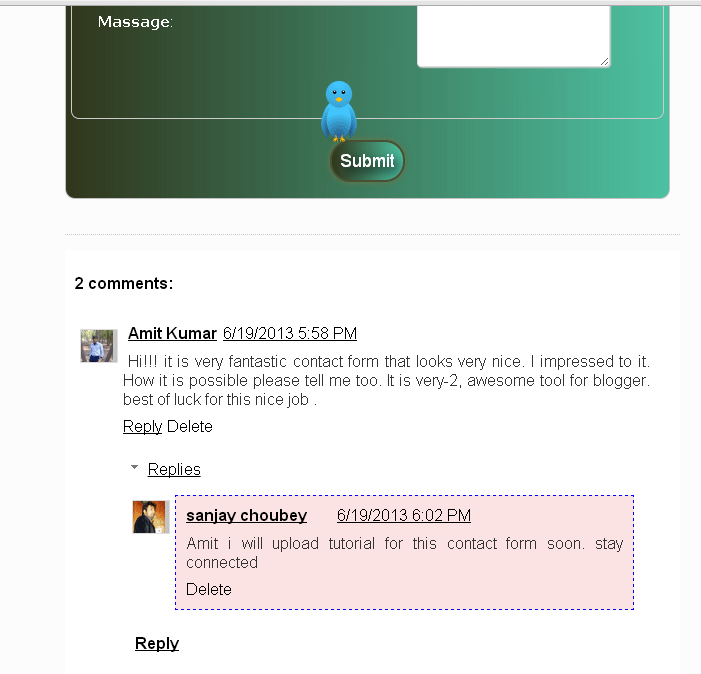
There should be some change between readers comments and Admin comments appearances, since one can easily see Admin’s views in the comment section  if the Admin’s comments style is different from the readers.
stylish author comment box in Blogger

Read how to make css buttons in Blogger. 

Features:1. Colorful Background with dotted lines
2. Easy to install in every Template
3. Less coding so it won’t effect Blog loading time.

How to install Stylish Admin comment Box:

    1. Go to Blogger Dashboard
    2. Click on template
    3. Click on edit html
    4. press cntl+f and find this code </body>
    5. Copy the following code and paste it before this code
<!–a1bloggerseo.com highlight author starts –>
<script>
$(function() {
function highlight(){
$(‘.user.blog-author,.ssyby’).closest(‘.comment-block’)
.css(‘border’, ‘dashed blue 1px’)
.css(‘background’,’#F0A2A2 url(“http://www.blogblog.com/1kt/transparent/white80.png”)’)
.css(‘padding’, ’10px’);
}
$(document).bind(‘ready scroll click’, highlight);
});
</script>
<!–a1bloggerseo.com in highlight author ends –>
  1. Now click on save
  2. Enjoy!!!! you have done.

Filed Under: Blogger tips, SEO

  • « Previous Page
  • 1
  • …
  • 30
  • 31
  • 32
  • 33
  • 34
  • …
  • 36
  • Next Page »

Locations I Serve

Delhi | Noida | Gurugram | Ghaziabad | Faridabad | Chennai | Patna | Mumbai | Bangalore | Hyderabad | Kolkata | Pune | Jaipur | Lucknow | Chandigarh | Bhopal | Indore | Nagpur | Ahmedabad | Vadodara | Rajkot | Coimbatore | Kochi | Trivandrum | Ranchi | Bhubaneswar | Guwahati | Vishakhapatnam | Vijayawada | Mysore | Mangalore | Ludhiana | Amritsar | Jalandhar | Dehradun | Meerut | Kanpur | Varanasi | Prayagraj | Agra | Gwalior | Jabalpur | Raipur | Bilaspur | Durg-Bhilai | Jamshedpur | Dhanbad | Siliguri | Shimla | Srinagar | Jammu | Goa | Rishikesh | Greater Noida | Surat

Copyright @ Sanjay Choubey
WhatsApp Call Now